
Ever found yourself staring at your iPhone, scratching your head and wondering, “Where are all those downloads?” You’re not alone. Many users embark on a digital scavenger hunt, searching for that elusive file or app they just downloaded. It’s like playing hide and seek with your own device—except it’s not as fun when you’re on a time crunch.
Understanding Downloads on Your iPhone
Finding downloads on an iPhone can be straightforward once you know where to look. Users typically find downloaded files in the “Files” app. Opening the “Files” app reveals a dedicated “Downloads” folder that houses documents, images, and more.
Exploring the “Files” app provides additional organization, with files accessible via the “On My iPhone” or “iCloud Drive” options. Each option allows users to view and manage downloads effectively. Checking these locations helps in quickly locating any recent downloads.
Apps such as Safari or Mail also save downloaded content. When using Safari, tapping the download icon in the upper right corner shows all recent downloads. This feature enables users to quickly access files without additional digging.
Understanding the recent downloads list in Mail allows users to find attachments directly in their email conversations. Each attachment can then be saved to the “Files” app for future reference.
Some users prefer downloading music or movies through streaming apps such as Apple Music or Netflix. These downloaded media items usually appear within the respective app’s library. Each of these apps contains specific sections for offline accessibility.
For apps downloaded from the App Store, icon placement depends on the home screen layout. Users can rearrange app icons, making it easier to find frequently used applications. Using the search function on the home screen also efficiently locates apps.
Utilizing these methods simplifies the process of finding downloads on an iPhone, allowing for easier access to important files and enhanced digital organization.
Locating Downloads in Different Apps
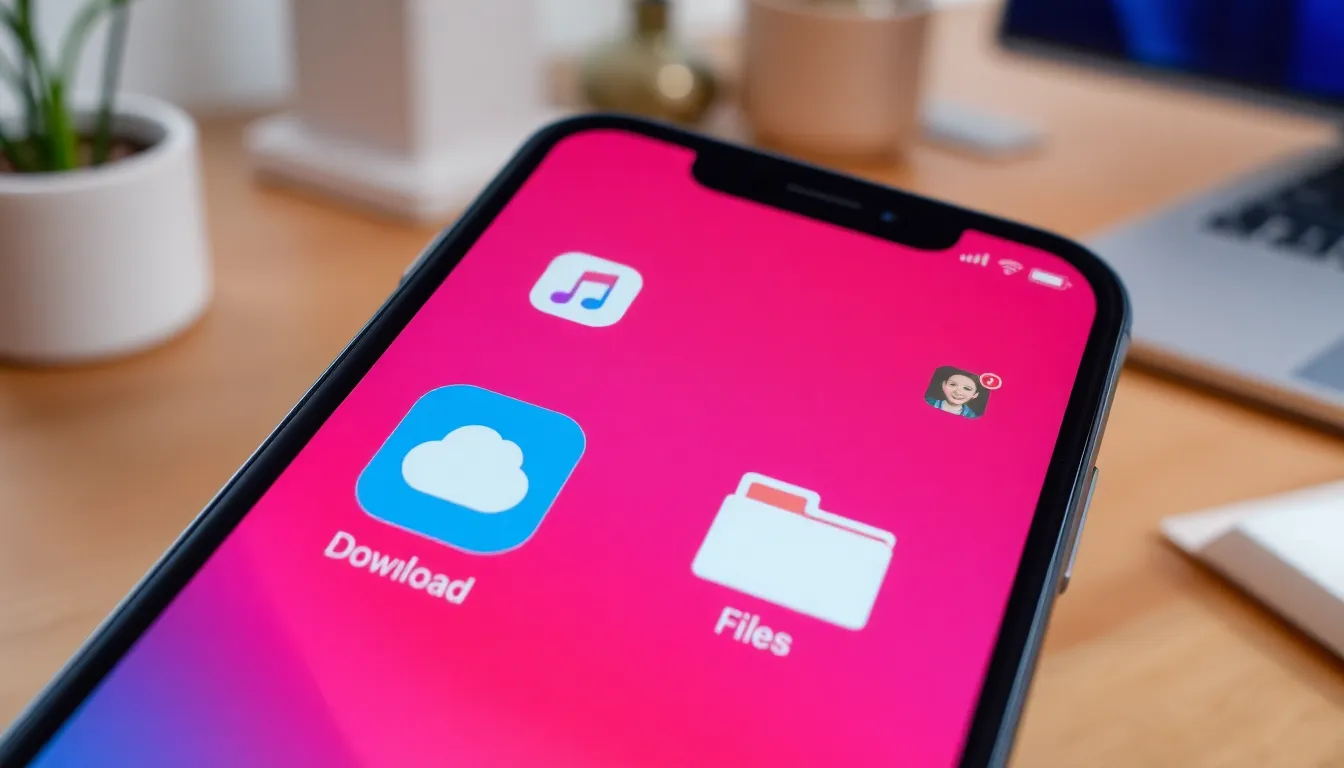
Finding downloaded files requires navigating various apps on an iPhone. Here are details on locating downloads in specific applications.
Safari Downloads
Safari stores downloaded files in a dedicated section. Users access it easily by tapping the download icon, usually located at the top right of the screen. Recent downloads appear as a list, making it simple to see what’s been saved. Tapping a file opens it directly or prompts sharing options. In Safari’s settings, users can change the default location for downloads, adjusting it to suit preferences. Understanding these features enhances the overall browsing experience.
Files App Downloads
The Files app serves as a hub for managing documents and media. Users can find a “Downloads” folder specifically for managing downloaded items. Accessing this folder happens through the app’s navigation menu under “On My iPhone” or “iCloud Drive.” Organizing files into subfolders improves retrieval efficiency. Search functionality within the Files app allows quick location of specific items. Navigating through the Files app ensures that users can easily manage their downloaded content.
Using the Files App Effectively
Navigating the Files app simplifies the process of managing downloaded files on an iPhone. Users can enhance file organization and retrieval with just a few steps.
Organizing Your Downloaded Files
Create a system for easy access to downloaded files. Many users prefer to sort documents into folders, such as Work, Personal, or Media. Labeling folders clearly aids in quick identification. Utilize the option to favorite frequently accessed files for immediate availability, placing them in the “Favorites” section. Regularly reviewing the “Downloads” folder keeps it decluttered. Consider deleting files no longer needed, which frees up storage space while maintaining organization.
Accessing Downloaded Files
Accessing downloaded files is straightforward. Open the Files app, then tap on “On My iPhone” to find the “Downloads” folder. iCloud Drive also provides access to downloads synced across devices. For quick retrieval, use the search bar for specific file names or types. When using Safari, recent downloads appear at the download icon, allowing users to navigate directly to files. This method streamlines file management, ensuring important documents remain within easy reach.
Troubleshooting Download Issues
Finding downloads on an iPhone may sometimes involve encountering problems. Users often face common issues that can hinder access to files.
Common Problems
Slow or unstable internet connections frequently impede download speeds. Users may find files stuck in a pending state or completely failing to download. App-specific glitches can also occur when applications like Safari or Mail mismanage files. Incorrect settings might lead to downloads saved in unexpected locations, adding to confusion. Lastly, low storage space can prevent new downloads from completing, blocking any attempts to save files successfully.
Solutions for Download Errors
Improving internet connectivity can resolve many download issues. Restarting the router or switching to a stable Wi-Fi network often leads to better performance. Checking the app settings allows users to verify where downloaded content saves automatically. Clearing the app cache or reinstalling the problematic applications can eliminate glitches. Increasing available storage is crucial; offloading unused apps or deleting unnecessary files frees up space for new downloads.
Locating downloads on an iPhone doesn’t have to be a daunting task. With the right tools and knowledge, users can efficiently find their files and apps without unnecessary frustration. The Files app serves as a centralized hub for managing downloads, while specific applications like Safari and Mail offer easy access to recent downloads. By implementing organizational strategies and regularly reviewing the Downloads folder, users can maintain a clutter-free experience. Troubleshooting common issues can further enhance access to important content. With these tips in hand, navigating the digital landscape on an iPhone becomes a much smoother journey.