
Picture this: you’re in the middle of a crucial meeting, or maybe just trying to enjoy a moment of peace, when suddenly your phone decides to play hide-and-seek with your notifications. That’s right, the infamous Do Not Disturb mode is on, and it’s more stubborn than a cat ignoring your call. If only there were a way to turn it off without feeling like you’re solving a Rubik’s Cube blindfolded.
Understanding Do Not Disturb Mode
Do Not Disturb (DND) mode serves as a useful feature on the iPhone. This function silences calls, alerts, and notifications, promoting peace during crucial times.
What Is Do Not Disturb?
Do Not Disturb is a setting that blocks notifications from interrupting users. When activated, it prevents incoming calls from ringing or notifications from appearing on the screen. Individuals can customize this feature, allowing calls from specific contacts or silencing all interruptions. It’s beneficial for situations that require focus or tranquility.
Benefits of Using Do Not Disturb
Using Do Not Disturb enhances productivity by minimizing distractions. During meetings or study sessions, it ensures that only essential notifications break through. Users can also schedule DND mode for regular quiet times, maintaining a consistent routine. Overall, this feature helps individuals prioritize significant tasks without annoying interruptions.
How to Access Do Not Disturb Settings
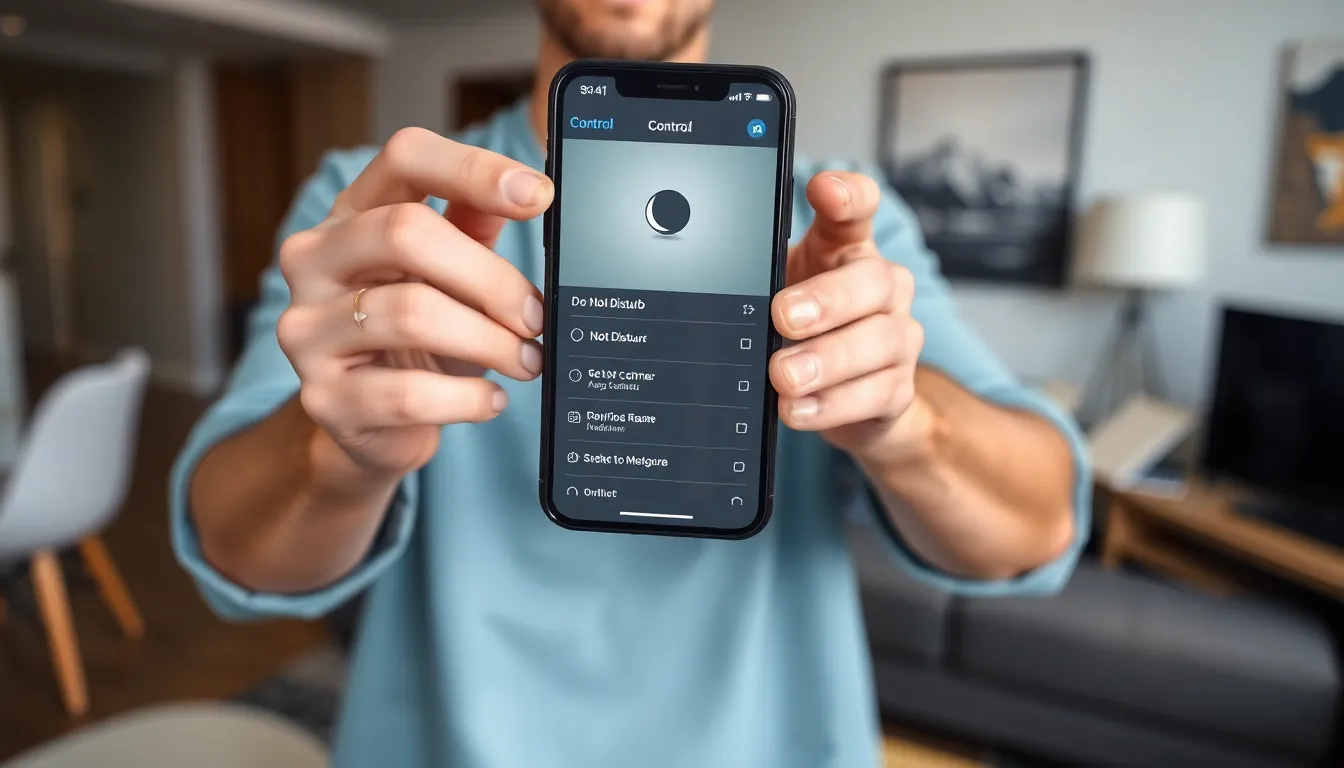
Accessing Do Not Disturb settings is straightforward on an iPhone. Users can choose between the Control Center and the Settings app for quick adjustments.
Using the Control Center
Swipe down from the upper right corner to open the Control Center. Locate the crescent moon icon that represents Do Not Disturb. Tapping this icon activates or deactivates the feature instantly. A highlighted icon indicates DND is on, while a grayed-out icon shows it is off. This method provides immediate access without navigating through menus.
Through the Settings App
Open the Settings app to manage Do Not Disturb settings more comprehensively. Scroll down to find “Focus,” then tap on it. Select “Do Not Disturb” to access various customization options. Users can turn off DND here by toggling the switch to the off position. Adjusting settings for notifications, calls, and scheduled times is also possible within this section, allowing for a tailored experience.
Steps to Turn Off Do Not Disturb on iPhone
Turning off Do Not Disturb mode on an iPhone can restore functionality to notifications and calls. Users can achieve this through two main methods.
For All iPhone Models
Accessing Do Not Disturb settings involves two straightforward methods. First, swipe down from the upper right corner to open the Control Center. Tap the crescent moon icon to deactivate Do Not Disturb. Alternatively, users can go to the Settings app. Navigate to “Focus,” then select “Do Not Disturb” to toggle it off. Both options provide quick access for managing interruptions.
Specific Instructions for iOS Versions
The process varies slightly depending on the iOS version. For iOS 14 and later, swipe down to reveal the Control Center, then locate the crescent moon icon. For earlier versions, users will find similar options within the Settings app. Each version maintains a consistent approach, ensuring ease of access for users, regardless of their iPhone model. Familiarizing yourself with these steps enhances control over notifications, ensuring important calls get through when needed.
Troubleshooting Common Issues
Turning off Do Not Disturb mode can sometimes present challenges. Several factors might prevent its deactivation, warranting a closer look.
If Do Not Disturb Won’t Turn Off
Users may find that Do Not Disturb doesn’t turn off as expected. This issue could stem from software glitches or settings conflicts within the iPhone. First, restarting the device often resolves minor glitches. If problems persist, checking for software updates might help, as Apple frequently issues patches that fix bugs. In cases where DND settings appear off but notifications still aren’t coming through, resetting all settings may provide a solution. This action restores default configurations without erasing personal data.
Checking for Scheduled DND Settings
Users often overlook scheduled DND settings that might be in effect. These schedules automatically activate DND during specific times, rendering notifications silent despite manual toggling. To check, navigate to Settings, then tap on Focus followed by Do Not Disturb. Users should examine any active schedules. Disabling these may restore regular notification functionality. Taking a moment to review this can prevent missed calls or alerts, particularly during critical hours.
Turning off Do Not Disturb on an iPhone doesn’t have to be a daunting task. By utilizing the Control Center or the Settings app users can easily regain control over their notifications and incoming calls. This feature is designed to enhance focus and productivity but knowing how to manage it is key to avoiding unnecessary interruptions.
As users become more familiar with the steps and settings associated with DND mode they can enjoy a seamless experience. Whether it’s a quick toggle from the Control Center or a deeper dive into the Settings app adjustments can be made effortlessly. Staying proactive about managing these settings ensures that important communications never get missed.